
Custom Warehouse Views
We have recently released a new feature: custom views in the Warehouse (or just "custom views" for short).
Background
A view is a database object that is defined by a SQL query. It surfaces the data that the query returns. Views can be queried just like tables can be queried.
For example, I could create a view named entity_with_creator_names with this SQL query:
SELECT entity.id, prinicpal.name
FROM stagingtx.entity$raw entity
JOIN stagingtx.principal$raw principal
ON entity.creator_id = principal.id
Then, I can query the view by running SELECT * FROM entity_with_creator_names. This would return rows like
| entity_id | creator_name |
|---|---|
| bfi_1238hf09 | Alice |
| seq_19dfh012 | Bob |
If you're curious to learn more about views in general, see the Postgres documentation for a good starting point.
What are custom views?
Custom views are views that are defined and created by end-users in the UI. Users of that tenant can then query those views just like they query standard warehouse tables. This means that uses can query these views in, for example, the Insights Dashboards Product and via Direct Access connections to the warehouse.
How do I create a custom view?
You can create custom views via the SQL block editor available in Insights.
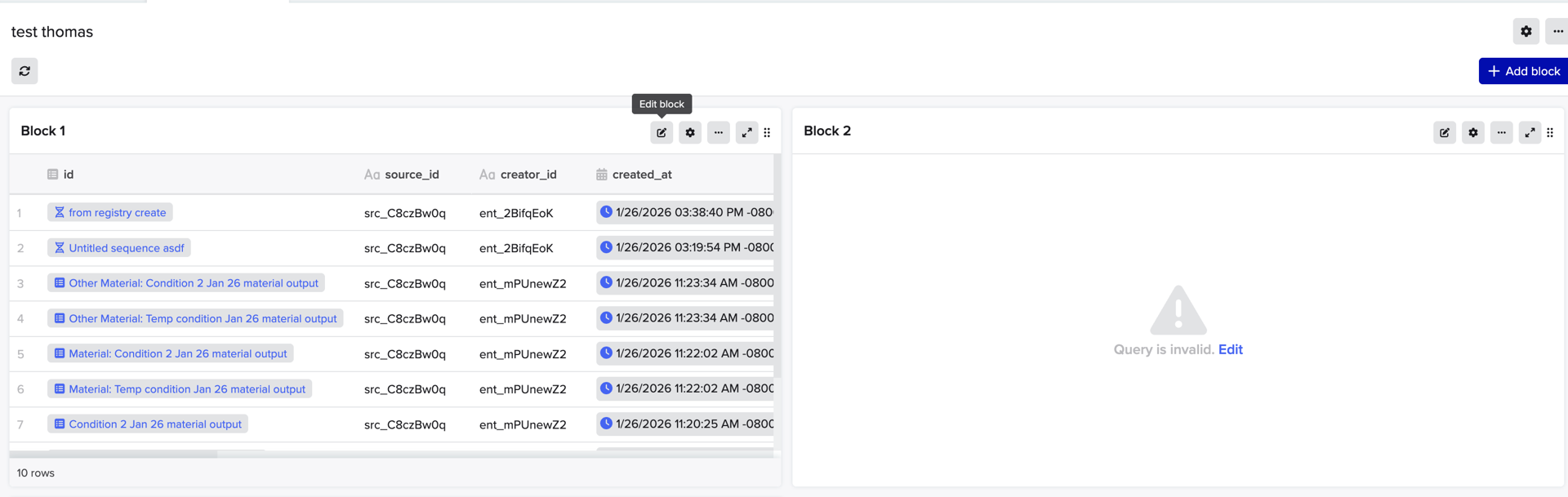
Here’s how you can get there from an Insights Dashboard, shown below. From an Insights dashboard, click the “Edit block” button of any existing block, or click the “Add block” button on the top right. You must have permissions to write to Insights dashboards in order to be able to use this feature.
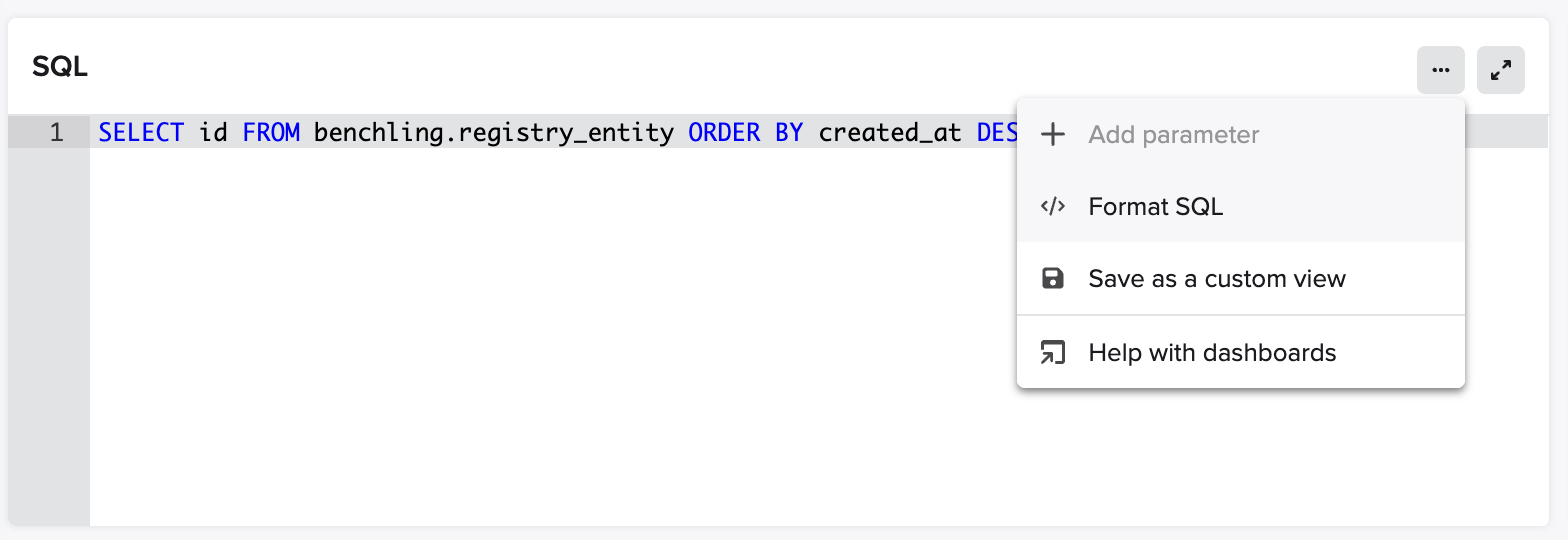
Write your desired SQL query for the view in the box. Then, via the three-dots menu at the top right, click “Save as custom view.”
Then, fill in the form and click “Create View.” View creation will then be initiated. Note that it will take a few minutes for the view to show up in the warehouse.
New as of July 2026: You can now highly a subset of your query and use that to create your custom view. You can also edit the query in the creation form.
Things to keep in mind when creating views
Again, it will take some time before views can be created in the warehouse. During this time, attempting to query the view will result in a SQL error (e.g. … does not exist).
There are several constraints that the query of the view must abide with in order for the view to function correctly. These include:
- You cannot use
SELECT *in the query. Column names must be explicitly written out. - Column names must be valid SQL identifiers. This essentially means that they can only consist of lowercase letters, numbers, and underscores. For example,
SELECT id as My_ID FROM ...is not allowed. You can writeSELECT id as my_id FROM …instead. - All relations in the query must be namespaced. For example, you cannot write SELECT id FROM entity. Instead, you can write
SELECT id FROM stagingtx.entity, where stagingtx is the namespace of the organization you want to query in. - (New as of July 2026!) You can now use fixed parameters in the query! For example, if you write
SELECT id FROM entity WHERE created_at > {{Created At Date}}, and your parameterCreated At Dateis set to2021-01-02, your view will be created with the query:SELECT id FROM entity WHERE created_at > 2021-01-02.- Note: Once a view is created, its query is static and will not change.
- You cannot use the
dynamic_pivotfunction in the query. - The column names, view name, and description all have limits on how long they can be.
Also, there is a limit to the number of views any single user can create (if you run into this limit, see “How to Delete” below). There is also a limit to the number of views an entire tenant can have.
Finally, keep in mind that any user on the tenant can read the name, description, and query of all custom views. However, row-level security will still apply to any data returned from the views, so users will not be able to see data that they don’t have permission to see.
Custom views can be automatically removed from the warehouse
Occasionally, the Warehouse sync process may need to remove a custom view. This can happen if the view query depends on a column or table that no longer exists.
For example, suppose you have a Result schema named titration_result. Then you create a view, my_titration_view, with this query:
SELECT value, notes FROM my_org.titration_result$raw
Now suppose you change the type of the schema field notes on titration_result. This changing of type requires the Warehouse sync process to drop the notes schema field and re-create it. That requires dropping my_titration_view.
If a view is dropped from the warehouse, the creator will eventually be notified by email. The creator can then delete the view in the UI (see below) and recreate one with a similar query.
New as of July 2026: We've implemented some changes so that this automated removal should be much less likely now.
Custom views can be found in the Insights Schema Browser
Let’s suppose you’ve created a few views but forgot exactly what they’re called or what their SQL queries are.
You can find information on your views in the Insights Schema Browser:
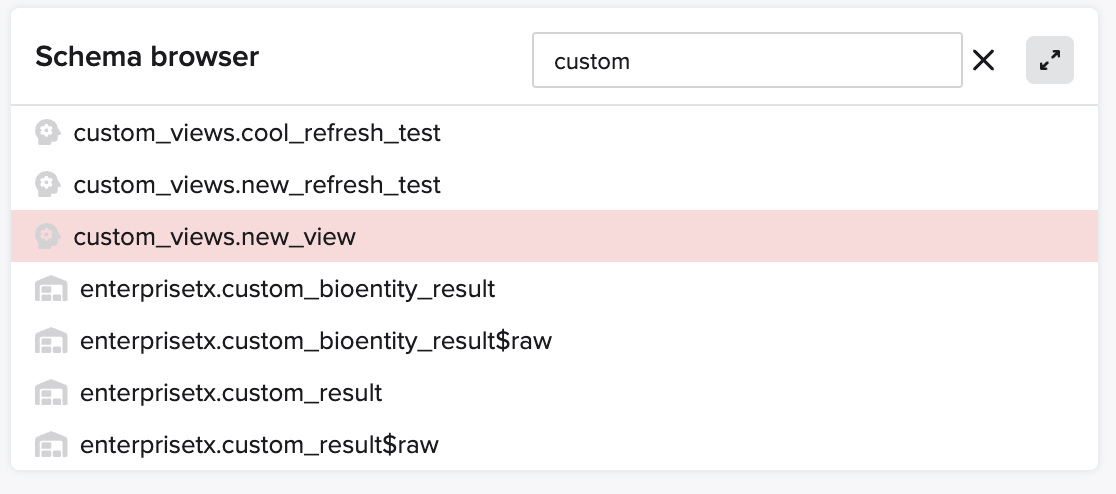
If you hover over a custom view row, you’ll see several buttons. Also, if the given view no longer exists in the warehouse, it will be highlighted red and have a explanatory tooltip if you hover over the row.
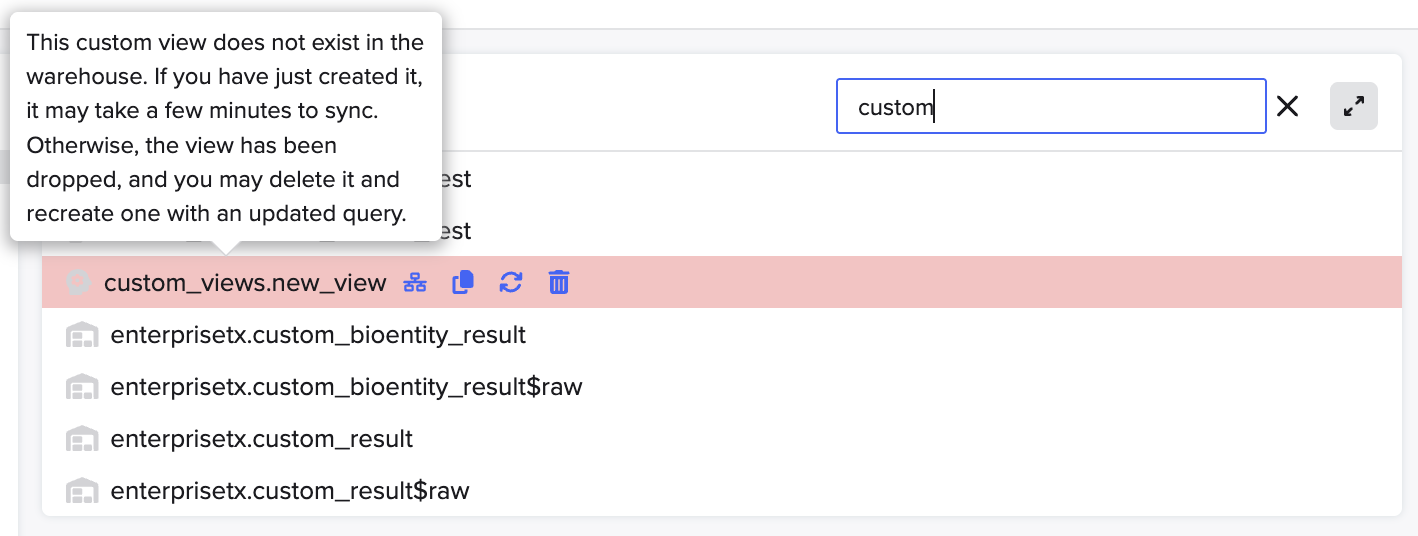
If a view no longer exists in the warehouse, you may delete the view. However, as the tooltip warning states, if you have just created the view, it may appear red at first but later become normal. Click the “refresh” button to update the status (more on that below).
How to delete a custom view
Simply click the “delete” icon on the custom view row. Note that only the creator of a view (or a tenant admin) can delete views.
New as of July 2026: If you attempt to delete a custom view (named "A") that another custom view (named "B") depends on, you will now receive an error message saying that you must delete the custom view "B" first.
How to refresh the status of a custom view
Click the “refresh” icon. This kicks off a check for the view, and it should re-appear with the correct status (red if the view no longer exists in the warehouse, and white if the view exists in the warehouse).
How to find the description and query of a custom view
Click on the row itself. Then, the description is available on hover over the “info” icon and the view query can be copied from the clipboard icon on the right.
How to open the Entity Relationship Diagram (ERD) for a view
Click on the “open entity diagram” button on the row. Note that this will not show any relationships to other tables, but it will show all the columns a view has.
Updated 3 months ago