
Importing Data with the Bulk Import API
We are in the process of deprecating the v3-alpha API. All paths in the following screenshots should be prefixed with /v3 instead of /v3-alpha/benchling.
The Bulk Import API framework allows you to create and update Benchling objects in bulk via an asynchronous task. The relevant bulk endpoints are denoted by the suffix bulk-create and bulk-update. It is a part of the V3 REST API early access program.
Limits
Bulk import is a file-based flow that supports up to 60,000 input objects or a 100mb file, whichever is lower, per request.
Moreover, at this time, you can only kickoff 1 bulk import mutation per type at a time.
Step 1: Define your input objects
Define your input objects in a jsonl file - one json object per line. Each input object is a dictionary with the keys request_id and input_object. The shape of the input_object is defined by the corresponding single POST endpoint for the type that you are trying to mutate in bulk. For example, the custom entity input shape is defined as:
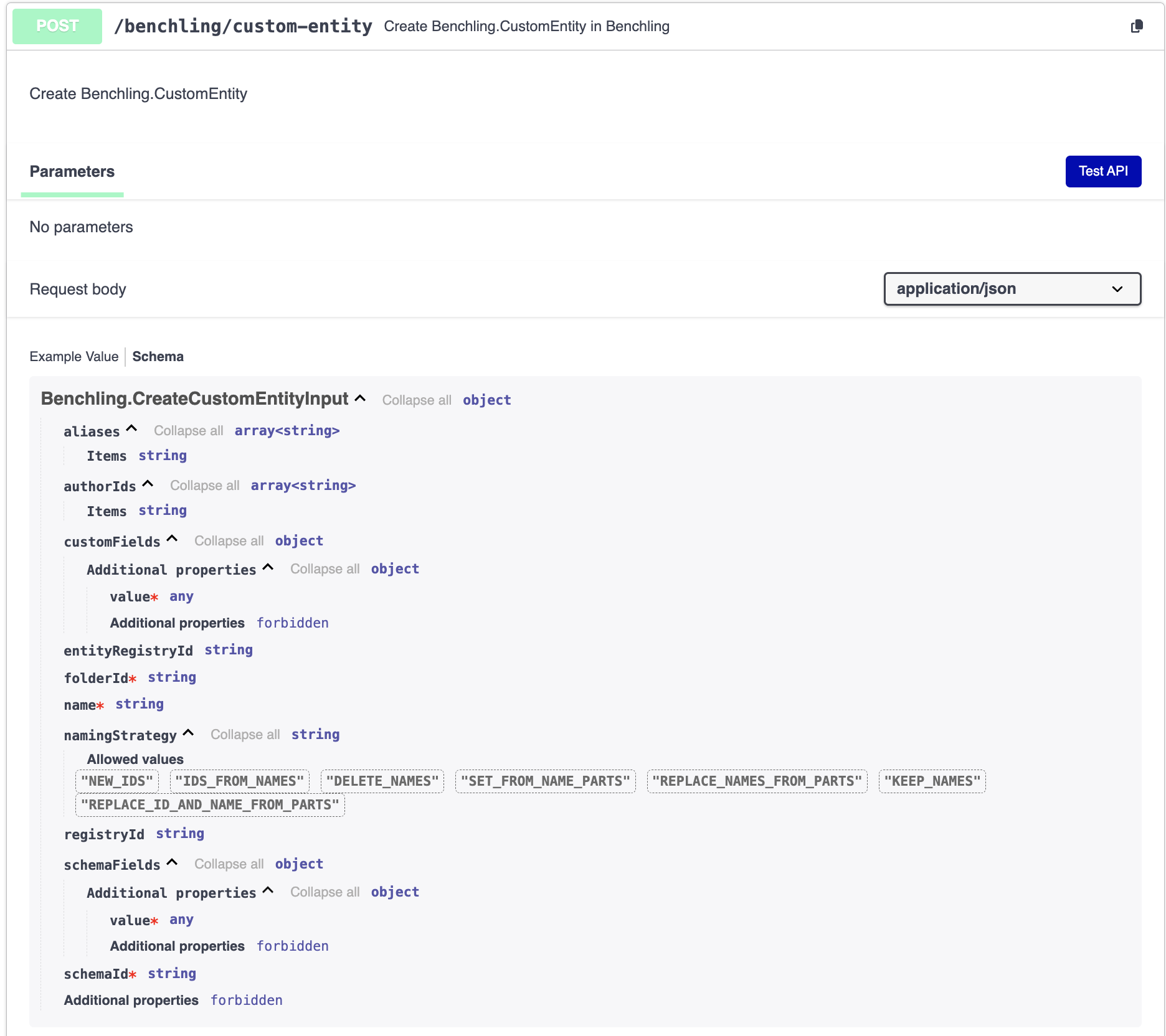
Your jsonl file might look like:
{"request_id": "my_entity_1", "input_object": {"name": "Entity 1", "folderId": "lib_123", "schemaId": "ts_fOCoL4ogYi", "schema_fields": {"schema_field_1": {"value": "test"}}}}
{"request_id": "my_entity_2", "input_object": {"name": "Entity 2", "folderId": "lib_123", "schemaId": "ts_fOCoL4ogYi"}}
We will refer to this file as example_input_objects.jsonl.
Step 2: Create your file
After you have defined your input objects, you can upload your file via the ScratchFile endpoints.
a. Provide a filename to create a new scratch file:
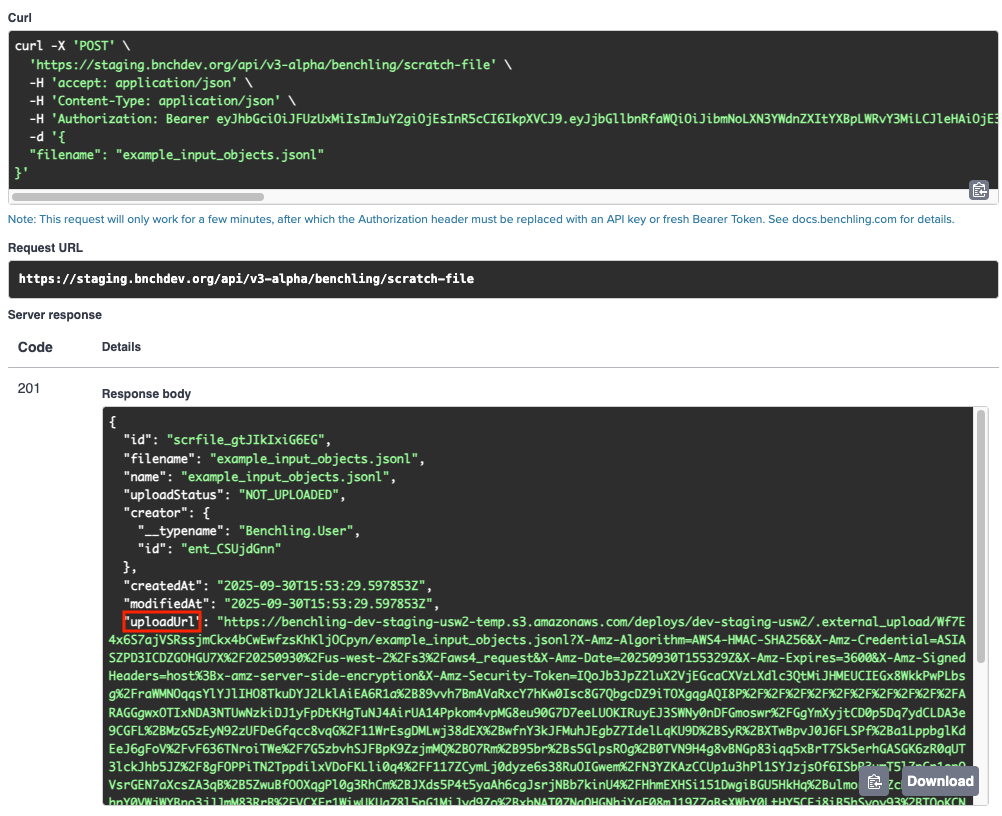
b. You can upload your file at the upload url provided in the response body:
curl -H "x-amz-server-side-encryption: AES256" -X PUT -T example_input_objects.jsonl -L <S3_PUT_URL>c. After you have successfully uploaded your file, you can mark the file as uploaded via a PATCH.
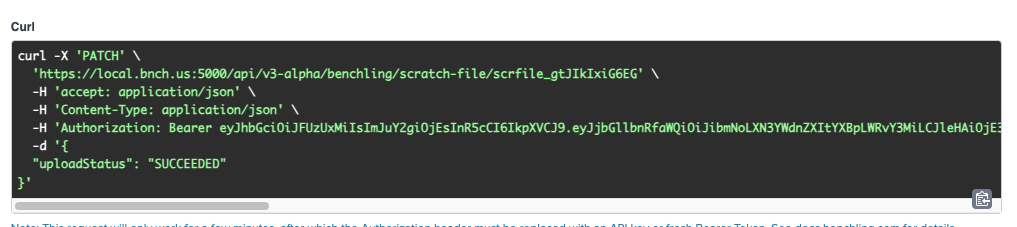
Step 3: Kickoff the bulk import task
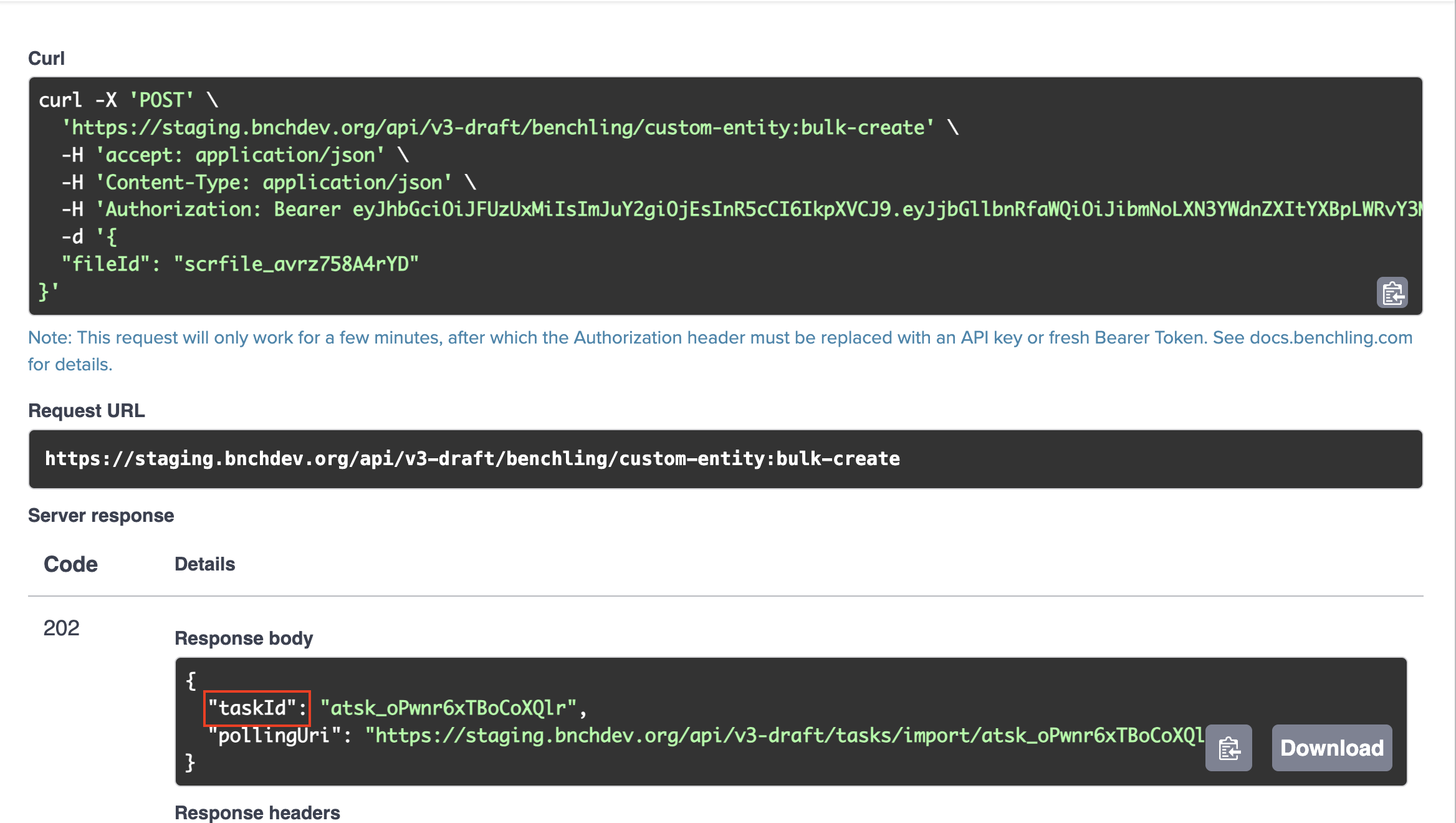
Now you can kickoff the bulk import task with the corresponding scratch file id.
Step 4: Poll for results
You can poll the following endpoints for the status, successful results, and errors associated with the import using the taskId returned in Step 3.
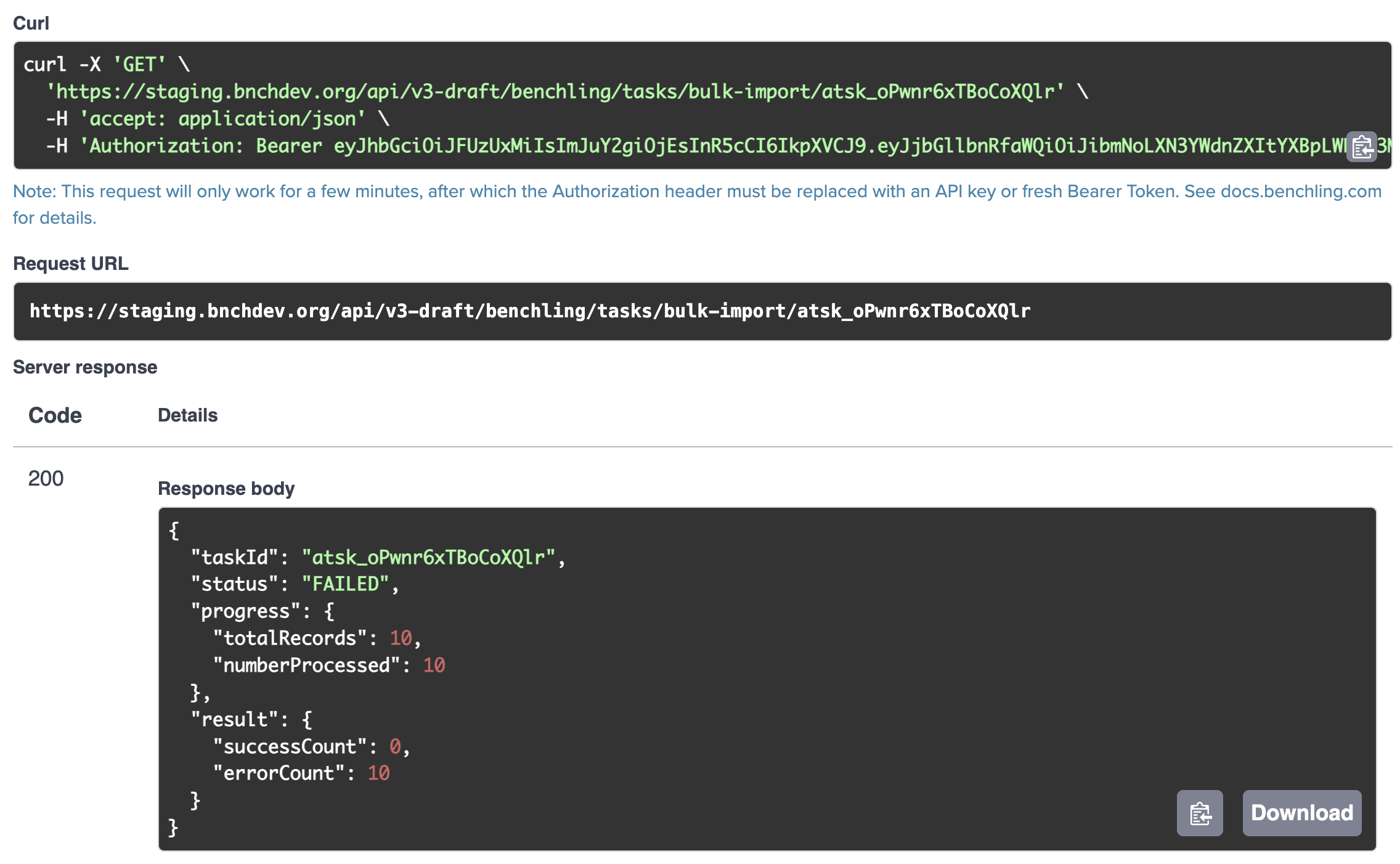
a. For the status of the task, you can call /tasks/bulk-import/{task_id}:
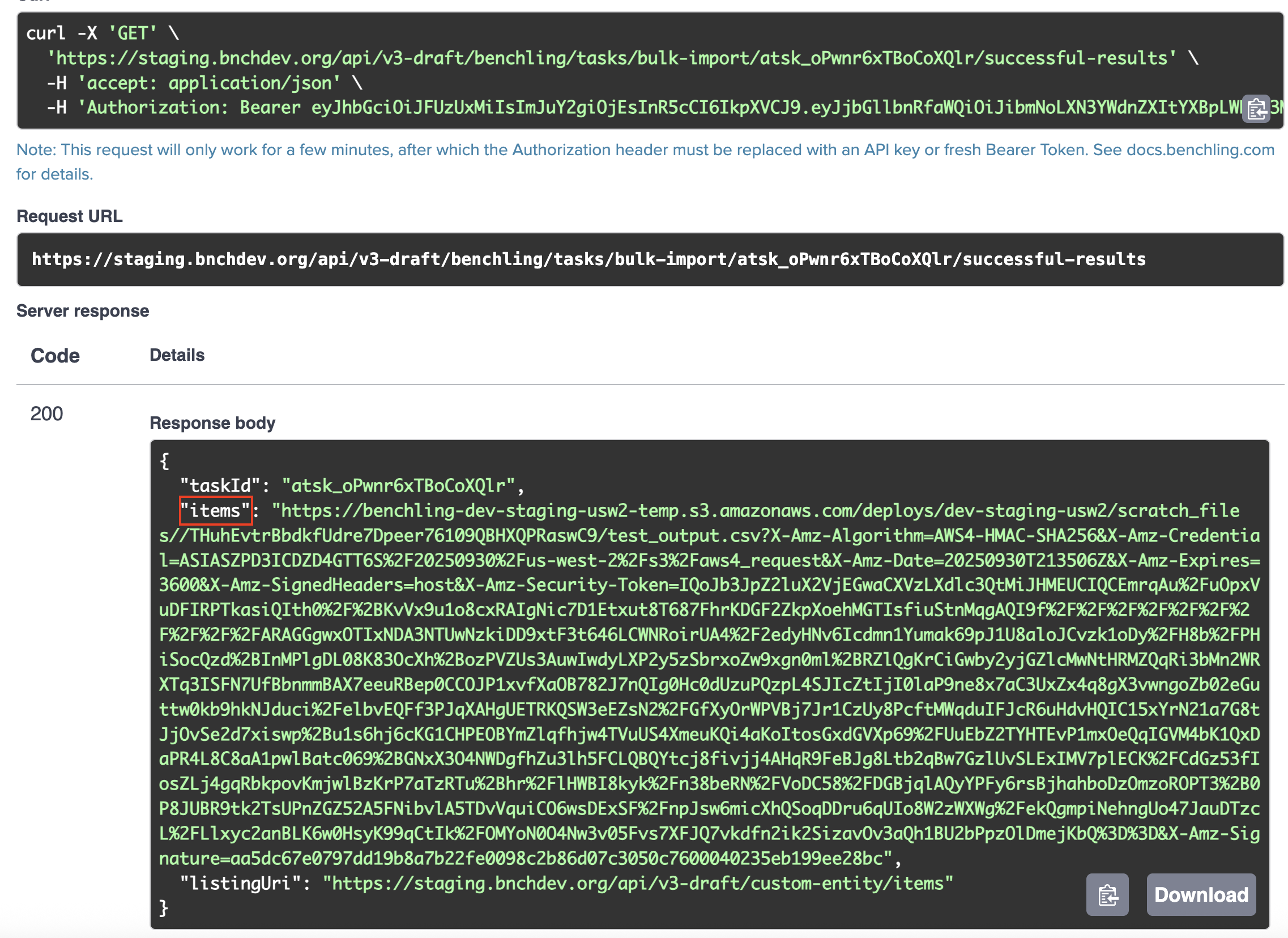
b. For successful results, you can call /tasks/bulk-import/{task_id}/successful-results and download them from the url provided under items:
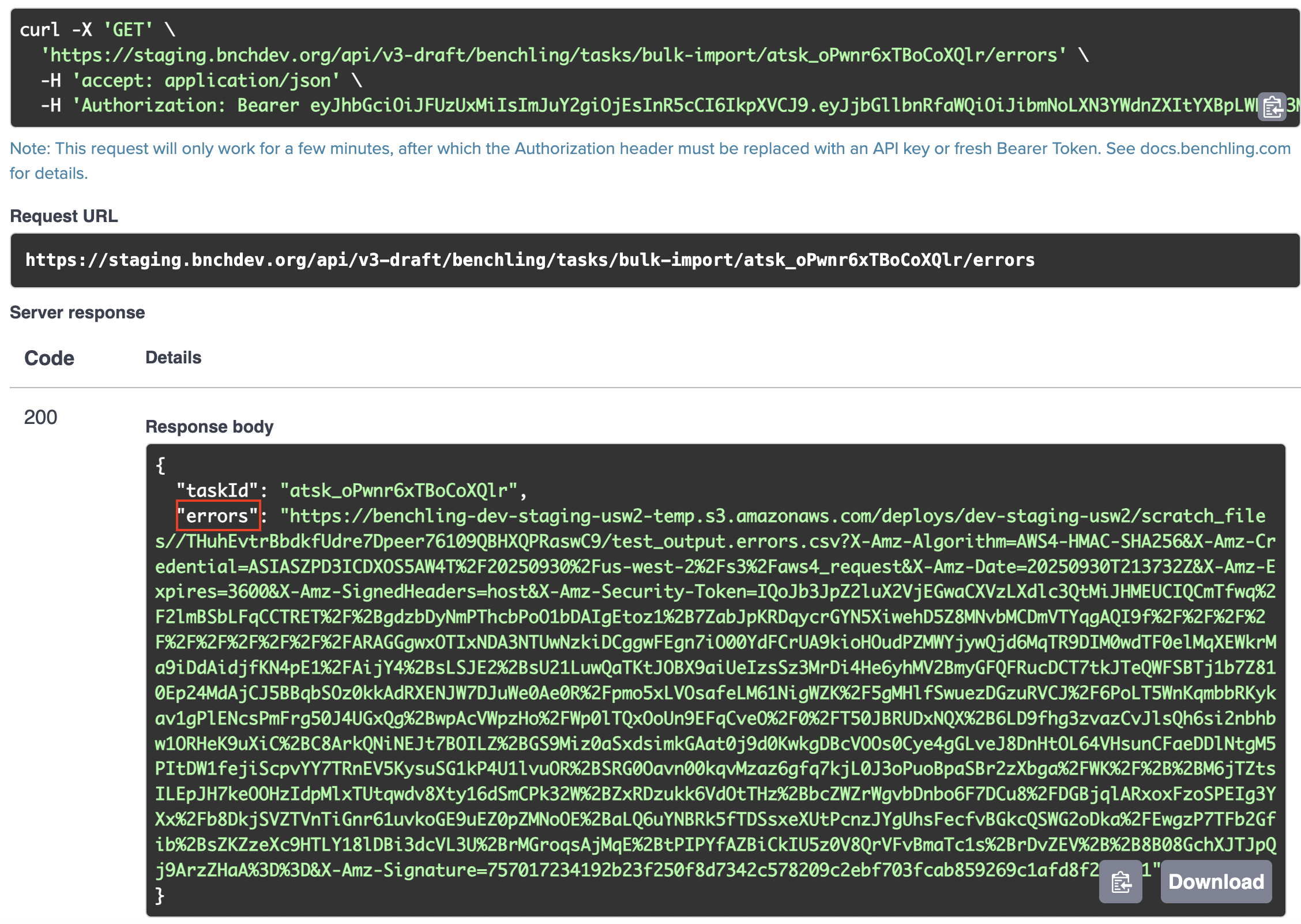
c. For errors, you can call /tasks/bulk-import/{task_id}/errors and download them from the url provided under errors:
d. The format of the successful results and errors file will be jsonl, similarly to the input object file.
Updated 3 months ago